The ESP32-2432S028R — widely known in the maker community as the Cheap Yellow Display (CYD) — is an exciting all-in-one ESPRESSIF ESP32 development board with a built-in 2.8-inch TFT touchscreen that brings powerful graphics and interactivity to your projects without the need for separate display modules.
In this comprehensive tutorial, we’ll cover what this board is, how it works, its pinout, and how to start building projects using Arduino IDE, MicroPython, and graphical libraries like LVGL.
What Is the ESP32-2432S028R?
The ESP32-2432S028R is a development board that packs:
-
An ESP32-WROOM-32 microcontroller with dual-core processor, Wi-Fi, and Bluetooth.
-
A 2.8-inch TFT display with 240×320 px resolution and a resistive touchscreen panel.
-
Onboard peripherals including a microSD interface, RGB LED, and touch controller.
-
Built-in USB-to-serial circuitry for easy programming.
This integration makes it much more convenient than using a separate ESP32 board coupled with an external display — especially for creating graphical user interfaces (GUIs) in IoT projects.
Hardware Architecture Deep Dive
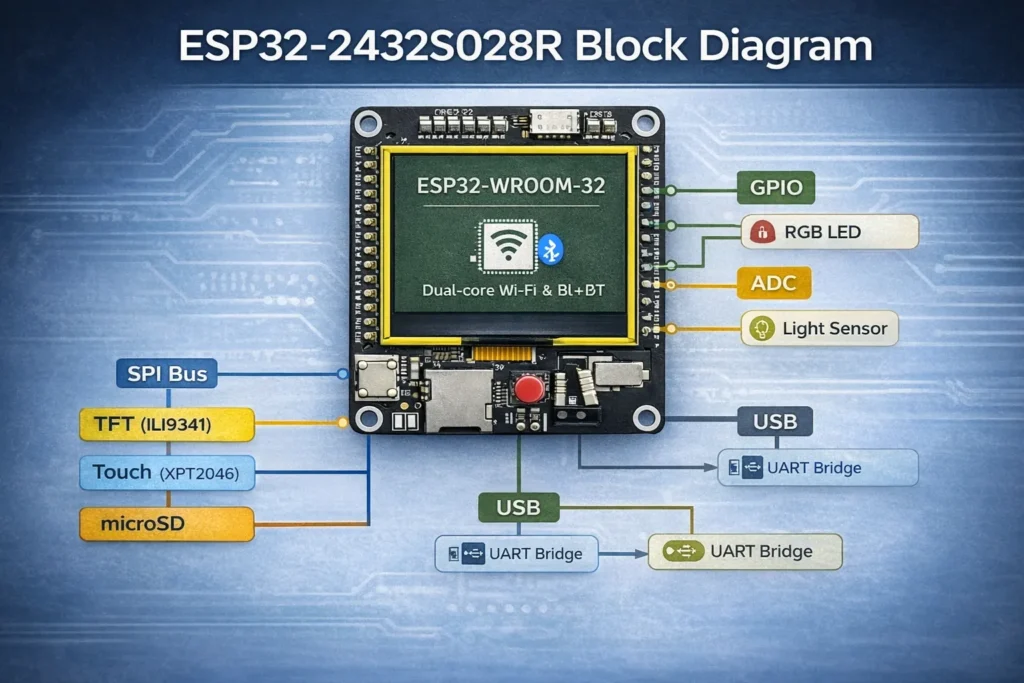
MCU: ESP32-WROOM-32
-
32-bit Xtensa LX6 dual-core
-
Up to 240 MHz
-
Hardware SPI, I2C, UART, ADC, DAC
-
802.11 b/g/n Wi-Fi
-
Bluetooth Classic + BLE
The chip remains one of the most mature IoT SoCs on the market.
Display Subsystem
-
Driver: ILI9341
-
Resolution: 240×320
-
Interface: SPI
-
16-bit color depth
SPI bandwidth is a limiting factor for high frame-rate animations. However, for dashboards and static UI elements, it performs reliably.
Touch Controller
-
Chip: XPT2046
-
Resistive technology
-
SPI interface
Resistive touch is pressure-based, meaning:
✔ Works with gloves
✔ More industrial-friendly
✖ Less precise than capacitive
Understanding the Board’s Capabilities
The ESP32-2432S028R is a versatile board that can be programmed with:
-
Arduino IDE
-
ESP-IDF
-
MicroPython
It supports Wi-Fi and Bluetooth and offers expandable GPIO pins for additional peripherals, sensors, or controls.
Because it has integrated display and touchscreen hardware, it’s perfect for projects that benefit from a visual interface, such as dashboards, sensor displays, control panels, and more.
ESP32-2432S028R Pinout Overview
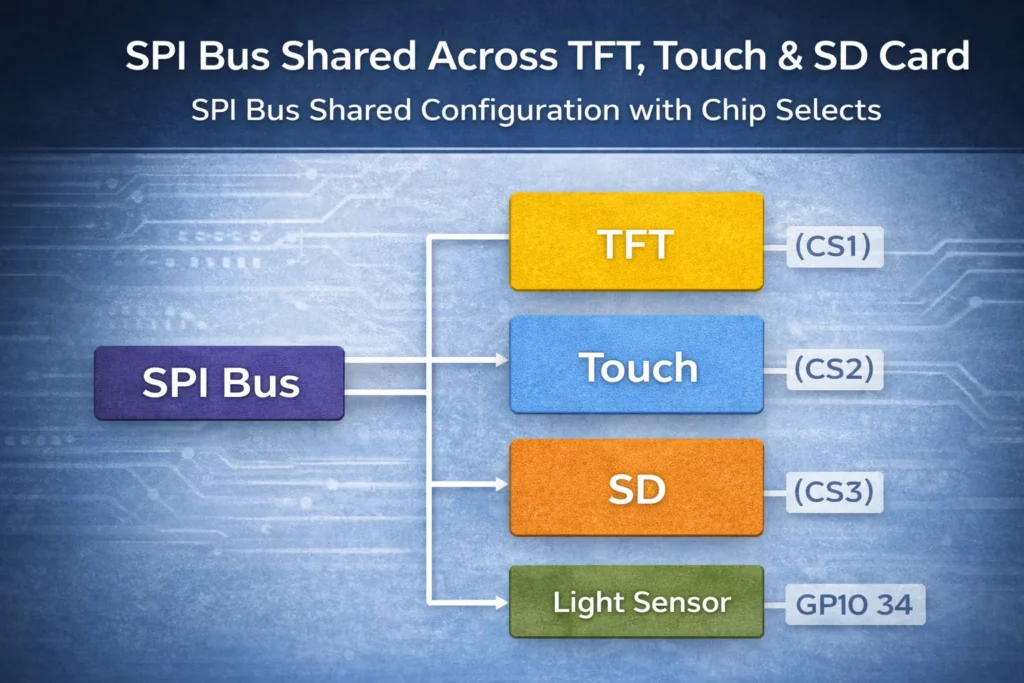
The board uses SPI for:
-
TFT display
-
Touch controller
-
microSD card
Some GPIOs are dedicated to these peripherals, so not all pins are freely available.
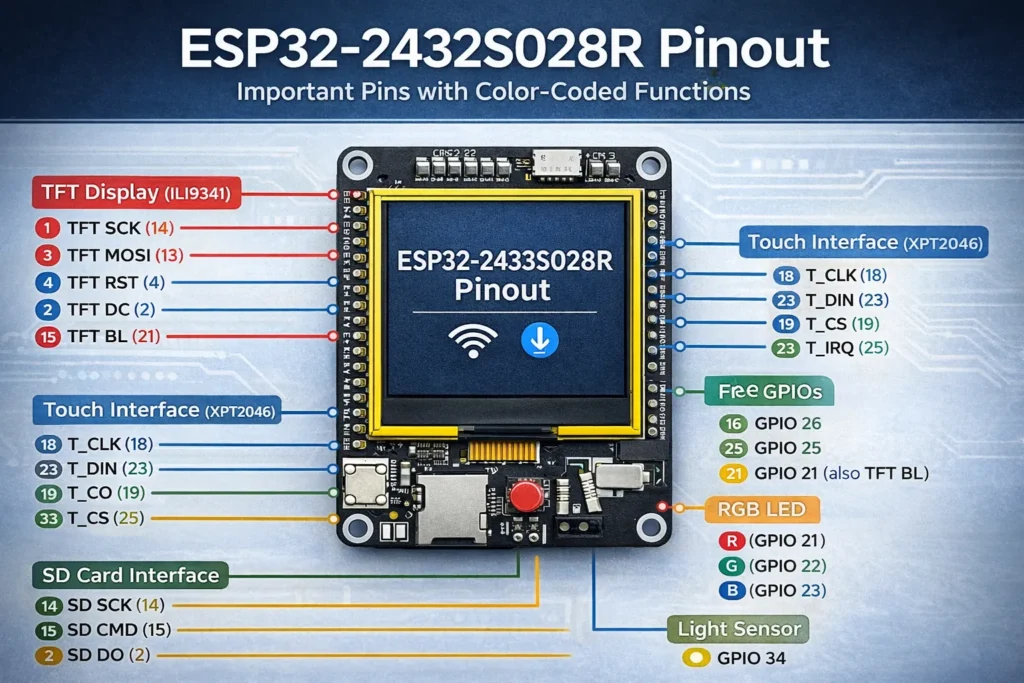
Commonly used pins (may vary slightly by revision):
| Function | GPIO |
|---|---|
| TFT MOSI | 13 |
| TFT MISO | 12 |
| TFT SCK | 14 |
| TFT CS | 15 |
| TFT DC | 2 |
| TFT RST | 4 |
| Touch CS | 33 |
| SD CS | 5 |
Engineering consideration:
-
Avoid using shared SPI pins for other high-speed peripherals.
-
Confirm board revision before firmware deployment in production.
⚠️ Always confirm your board revision before final wiring.
Understanding the pinout is key to using this board in custom projects.
The CYD board dedicates certain pins to:
-
The TFT display and touchscreen interface (SPI bus).
-
The microSD card interface (SPI).
-
Extra available GPIOs for external peripherals.
A typical pinout guide lists which pins are dedicated to display control and which remain free for your own devices — a crucial step before wiring up sensors or actuators.
Getting Started With Arduino IDE (Step-by-Step)
To begin programming your ESP32-2432S028R with Arduino:
Step 1 — Install ESP32 Board Package
In Arduino IDE:
File → Preferences → Additional Boards Manager URLs
https://raw.githubusercontent.com/espressif/arduino-esp32/gh-pages/package_esp32_index.json
Select:
Board: ESP32 Dev Module
-
-
Use TFT_eSPI for display control.
-
Use XPT2046_Touchscreen to handle touchscreen input.
-
Step 3 — Configure TFT_eSPI
Inside TFT_eSPI library:
Edit User_Setup.h to match ESP32-2432S028R pin definitions.
Example essential configuration:
#define ILI9341_DRIVER
#define TFT_MISO 12
#define TFT_MOSI 13
#define TFT_SCLK 14
#define TFT_CS 15
#define TFT_DC 2
#define TFT_RST 4#define TOUCH_CS 33
Arduino Code Example (Display + Touch)
Here is a simple working example:
#include <TFT_eSPI.h>
#include <XPT2046_Touchscreen.h>
#include <SPI.h>TFT_eSPI tft = TFT_eSPI();
#define TOUCH_CS 33
XPT2046_Touchscreen ts(TOUCH_CS);void setup() {
Serial.begin(115200);
tft.init();
tft.setRotation(1);
tft.fillScreen(TFT_BLACK);ts.begin();
ts.setRotation(1);tft.setTextColor(TFT_WHITE, TFT_BLACK);
tft.drawString(“ESP32-2432S028R Demo”, 20, 20, 2);
}void loop() {
if (ts.touched()) {
TS_Point p = ts.getPoint();tft.fillCircle(p.x / 10, p.y / 10, 5, TFT_RED);
Serial.print(“Touch X: “);
Serial.print(p.x);
Serial.print(” Y: “);
Serial.println(p.y);
}
}
Full Arduino Example: WiFi Touch Dashboard
#include <WiFi.h>
#include <TFT_eSPI.h>
#include <XPT2046_Touchscreen.h>TFT_eSPI tft = TFT_eSPI();
#define TOUCH_CS 33
XPT2046_Touchscreen ts(TOUCH_CS);const char* ssid = “yourSSID”;
const char* password = “yourPASSWORD”;void setup() {
Serial.begin(115200);WiFi.begin(ssid, password);
while (WiFi.status() != WL_CONNECTED) delay(500);tft.init();
tft.setRotation(1);
tft.fillScreen(TFT_BLACK);
tft.drawString(“WiFi Connected”, 20, 20, 2);ts.begin();
ts.setRotation(1);
}void loop() {
if (ts.touched()) {
TS_Point p = ts.getPoint();
tft.fillCircle(p.x / 10, p.y / 10, 5, TFT_GREEN);
}
}
What this does:
-
Initializes TFT display
-
Detects touch input
-
Draws red circle where screen is touched
-
Prints coordinates to Serial Monitor
In example sketches, you’ll learn how to initialize the display and touchscreen, draw text, and handle touch events — essential for building UI elements.
MicroPython Setup Guide
If you prefer Python:
Step 1 — Flash MicroPython Firmware
Download ESP32 MicroPython firmware and flash using:
esptool.py –chip esp32 –port COMx erase_flash
esptool.py –chip esp32 –port COMx write_flash -z 0x1000 firmware.bin
Step 2 — Use Thonny IDE
-
Select Interpreter → MicroPython (ESP32)
-
Choose correct COM port
This approach is great for beginners or when rapid prototyping is needed without the complexities of C/C++.
MicroPython Code Example (Display Text)
Example using ILI9341 driver:
from machine import Pin, SPI
import ili9341
import xpt2046spi = SPI(2, baudrate=40000000, sck=Pin(14), mosi=Pin(13), miso=Pin(12))
display = ili9341.ILI9341(
spi,
cs=Pin(15),
dc=Pin(2),
rst=Pin(4),
w=240,
h=320,
r=1
)display.fill(0)
display.text(“ESP32 CYD MicroPython”, 20, 20, 0xFFFF)
Touch example:
touch = xpt2046.XPT2046(spi, cs=Pin(33))
while True:
if touch.touched():
x, y = touch.get_xy()
print(“Touch:”, x, y)
Building Graphical Interfaces With LVGL
For advanced interfaces:
-
Buttons
-
Sliders
-
Graphs
-
Animations
-
Multi-screen UI
LVGL + ESP32-2432S028R creates a powerful embedded HMI system suitable for:
-
Smart energy monitors
-
Industrial control panels
-
Smart home touch controllers
Real-World Project Ideas
Here are some inspiring use cases:
-
Touch-controlled IoT dashboards showing sensor data.
-
Graphical thermostat controllers with touch buttons.
-
Portable handheld UI devices with Wi-Fi/Bluetooth connectivity.
-
MicroSD multimedia displays (images, text documents, etc.).
- WiFi Weather Dashboard
- Smart Thermostat Panel
- IoT Device Controller
- Touch-Based Light Controller
- Data Logger with microSD
- Home Automation Control Screen
Projects can start simple — like an ON/OFF touchscreen button — and evolve into complex applications with dynamic graphics and networking.
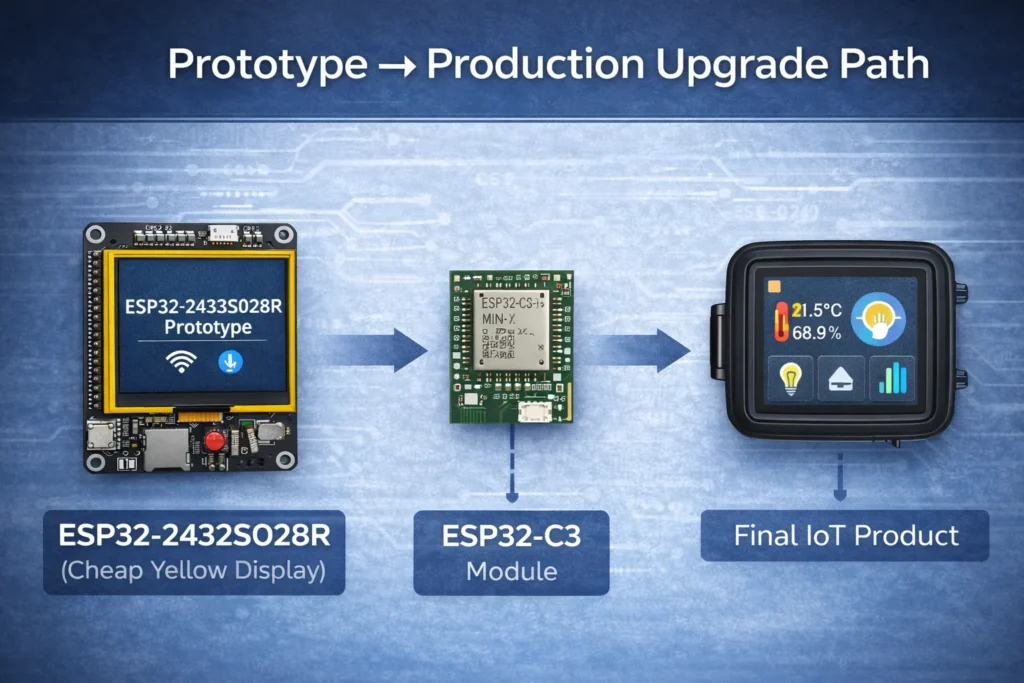
From Prototype to Product: Recommended Modules & Parts for CYD Builds (ESP32-C3 / ESP32-S3 + Power, Sensors, Switching)
When you move from a quick bench demo to a repeatable build, the ESP32-2432S028R (Cheap Yellow Display / CYD) usually benefits from a few supporting parts: stable power, reliable sensing, and a clear upgrade path for production (ESP32-C3 / ESP32-S3). Below are the most common add-ons engineers pair with CYD projects.
1) Low-Cost Wi-Fi IoT Node Upgrade: ESP32-C3 Modules
If your end product doesn’t need a touchscreen, many teams prototype the UI on CYD, then deploy the real device with ESP32-C3 for a smaller, cheaper IoT node.
Why ESP32-C3 is used in production
- Lower cost for high-volume IoT nodes
- RISC-V core (modern toolchain support)
- Strong security features (good fit for connected devices)
- Great for sensors, relays, simple MQTT endpoints
Best for
- Smart switches / relays
- Sensor nodes (temp, humidity, pressure)
- BLE provisioning + Wi-Fi telemetry
- Battery-friendly, cost-sensitive deployments
2) Best “Next Step” from CYD: ESP32-S3 Modules
If your CYD project starts to feel limited (UI performance, USB features, future roadmap), ESP32-S3 modules are the most natural upgrade.
Why engineers move to ESP32-S3
- More modern core (LX7) + better performance headroom
- Native USB (HID, debug, serial, device mode)
- Better fit for LVGL-heavy UIs and richer graphics stacks
- Strong option for 2026+ lifecycle planning
Best for
- Rich dashboards (LVGL widgets, charts, multi-screen)
- USB devices (keyboard/mouse/HID, data logger, tools)
- Edge UI + connectivity “all in one”
- Future-proof refresh of ESP32-WROOM projects
3) Must-Have Support Parts for CYD Builds (High-Intent Add-Ons)
Power & Stability
5V/3.3V regulators & DC/DC converters — CYD projects often fail due to unstable power (Wi-Fi peaks + backlight draw). For 5V input systems, use a reliable buck converter.
Storage & Logging
microSD cards / connectors — great for datalogging, offline dashboards, and UI assets (icons/fonts).
Sensors That Pair Well with a Touch Dashboard
- Temperature/Humidity: SHT3x / AHT20 / DHT22
- Air quality: CCS811 / SGP30
- Pressure: BMP280 / BME280
- Light: BH1750
Switching Loads from a Touch UI
MOSFETs / relays — use the touchscreen UI to control LED strips, pumps, fans, or solenoids.
ESP32-2432S028R vs ESP32-S3 Display Boards
Now we compare with newer ESP32-S3 based display boards.
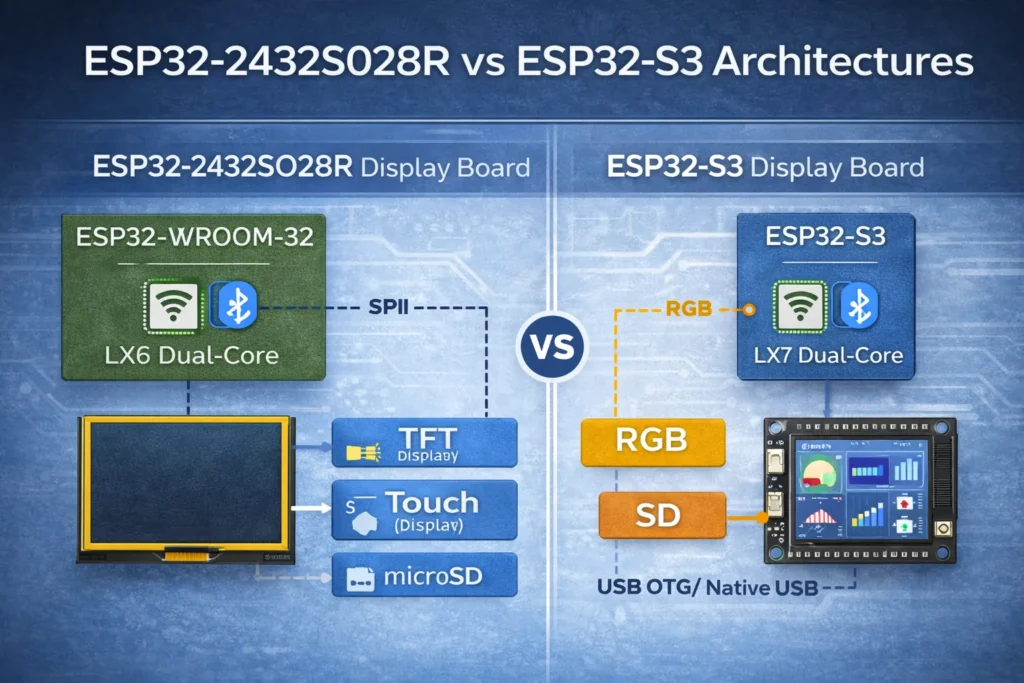
What Is ESP32-S3?
ESP32-S3 is the newer generation with:
-
Xtensa LX7 dual-core
-
Vector instructions (AI acceleration)
-
Native USB OTG
-
More GPIO
-
Improved security
Comparison Table
| Feature | ESP32-2432S028R | ESP32-S3 Display Boards |
|---|---|---|
| MCU | ESP32 LX6 | ESP32-S3 LX7 |
| USB Native | No | Yes |
| AI / Vector Acceleration | No | Yes |
| Display Type | SPI TFT | SPI / RGB / IPS |
| Touch | Resistive | Often Capacitive |
| Cost | Very Low | Medium |
| Arduino Support | Excellent | Growing |
| Industrial Future | Mature | Future-Oriented |
When to Choose ESP32-2432S028R
✔ Budget-sensitive projects
✔ Education & training
✔ Quick UI prototypes
✔ Mature Arduino ecosystem
When to Choose ESP32-S3 Display Board
✔ AI/ML edge inference
✔ USB HID devices
✔ Higher-resolution IPS panels
✔ Long-term 2026+ product roadmap
Conclusion
The ESP32-2432S028R Cheap Yellow Display is one of the most practical ESP32 development boards for touchscreen-based projects.
It’s ideal for:
-
Beginners learning embedded UI
-
Engineers prototyping IoT dashboards
-
Developers building low-cost HMI systems
With both Arduino and MicroPython support, it offers flexibility for every skill level.
If you’re building ESP32-based interactive devices, this board is one of the best entry points available today.
FAQ About ESP32-2432S028R Module
Is ESP32-2432S028R good for beginners?
Yes. It simplifies wiring and supports Arduino IDE out of the box.
Can ESP32-2432S028R run LVGL?
Yes, using TFT_eSPI and proper configuration.
Is it suitable for industrial applications?
For light industrial use and prototypes — yes. For long lifecycle products, ESP32-S3 boards may offer better longevity.
Does it support capacitive touch?
No. It uses resistive touch.