Part 2 (Upgrade): ESP32-C3 WiFi Dashboard + MQTT Publishing (OLED + DHT11)
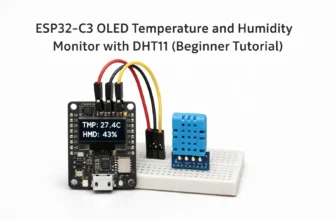
In Part 1, we built a simple ESP32-C3 temperature and humidity monitor that shows real-time readings on the built-in 0.42” OLED. In this upgrade version, we keep the same hardware and OLED UI, but add two powerful features: WiFi web dashboard and MQTT publishing.
The result is a compact sensor node that can be viewed locally on the OLED, monitored from your phone or laptop through a browser, and integrated into larger IoT systems (Home Assistant, Node-RED, ThingsBoard, EMQX, Mosquitto, etc.) via MQTT.
This project is part of the ESP32 Smart Environmental Monitor Series, where we gradually build a complete IoT monitoring system using the ESP32-C3.
Instead of jumping directly into complex networking and cloud integration, this series follows a progressive approach:
- Part 1 – Build a basic OLED temperature and humidity monitor
- Part 2 – Add WiFi, Web dashboard, and MQTT cloud support
- Future Parts – Add data logging, OTA updates, low-power mode, and multi-sensor expansion
Whether you’re a beginner or an intermediate developer, this series will guide you step by step from simple embedded programming to real IoT
system design.
What You’ll Build
After this upgrade, your ESP32-C3 will:
OLED Local Display
Continue showing TMP and HMD on the built-in OLED, updating every second.
WiFi Web Dashboard
Serve a simple dashboard page and a JSON endpoint. View readings at
http://<device-ip>/ and /api.
MQTT Publishing
Publish readings periodically to your broker so Home Assistant / Node-RED / dashboards can subscribe.
We still keep the firmware simple and readable. The key improvement is switching from “OLED-only” to a
multi-output device: OLED + Web + MQTT. This is a realistic pattern used in many IoT products.
Hardware Requirements
Although this is the upgrade version with WiFi and MQTT support, the hardware remains exactly the same as in Part 1.
No additional modules are required — the ESP32-C3 already provides built-in WiFi capability.
Since the ESP32-C3 has integrated 2.4GHz WiFi, we only upgrade the firmware — not the hardware.
Your existing OLED + DHT11 wiring will work without any changes.
Components Used
| Component | Quantity | Description |
|---|---|---|
| ESP32-C3 Board with 0.42” OLED | 1 | Microcontroller with built-in SSD1306 OLED display and WiFi |
| DHT11 Sensor | 1 | Temperature and humidity sensor module |
| Jumper Wires | 3 | For VCC, GND, and DATA connections |
| Breadboard (optional) | 1 | Recommended for prototyping |
Wiring Connections
Connect the DHT11 sensor to the ESP32-C3 exactly as in Part 1:
| Module | Pin | ESP32-C3 Pin |
|---|---|---|
| DHT11 | VCC | 3.3V |
| DHT11 | GND | GND |
| DHT11 | DATA | GPIO2 |
The 0.42” OLED display is already integrated on the ESP32-C3 development board and communicates via I²C:
| OLED Pin | GPIO | Function |
|---|---|---|
| SDA | GPIO5 | I²C Data Line |
| SCL | GPIO6 | I²C Clock Line |
The DHT11 operates safely at 3.3V. Avoid powering it with 5V when connected directly to ESP32 GPIO pins. If you are using a bare DHT11 (not a breakout module), ensure a 10kΩ pull-up resistor is connected between DATA and VCC.
Quick Start Checklist
1) Libraries to install
- U8g2 (by olikraus)
- DHT sensor library (Adafruit)
- Adafruit Unified Sensor
- PubSubClient (Nick O’Leary) for MQTT
2) Things you must set
- WiFi SSID + password
- MQTT broker host/IP + port
- (Optional) MQTT username/password
For local testing, you can use a broker on your PC (Mosquitto), a NAS, a Raspberry Pi, or a hosted MQTT service.
This tutorial assumes you already have a broker IP/hostname and port.
WiFi Web Dashboard Design
The firmware serves:
- Homepage:
/– a minimal dashboard with auto-refresh - API endpoint:
/api– returns JSON: temperature + humidity + uptime
Example JSON Response
{
  "temperature": 27.4,
  "humidity": 43,
  "uptime_ms": 123456
}
MQTT Publishing Design
We publish readings to a small topic tree. You can adjust these to match your system:
Recommended Topics
home/esp32c3/env/temperature
home/esp32c3/env/humidity
home/esp32c3/env/status
The firmware publishes temperature and humidity as simple numeric strings (easy to consume), and optionally a status message.
OLED updates every 1 second for a smooth local UI. MQTT publishes every 5 seconds by default to reduce network traffic.
The web dashboard fetches JSON every 2 seconds.
Arduino Code (Upgrade Version)
This sketch keeps the OLED layout from Part 1 and adds:
WiFi connection, WebServer, and MQTT publishing.
It also uses a millis()-based scheduler instead of long blocking delays, which keeps WiFi/MQTT stable.
#include <Arduino.h>
#include <Wire.h>
#include <U8g2lib.h>
#include <DHT.h>

#include <WiFi.h>
#include <WebServer.h>

#include <PubSubClient.h>

// -------------------- Pins & Display --------------------
#define SDA_PIN 5
#define SCL_PIN 6

U8G2_SSD1306_72X40_ER_F_HW_I2C u8g2(
  U8G2_R0,
  /* reset=*/ U8X8_PIN_NONE,
  SCL_PIN,
  SDA_PIN
);

// -------------------- DHT --------------------
#define DHTPIN 2
#define DHTTYPE DHT11
DHT dht(DHTPIN, DHTTYPE);

// -------------------- WiFi --------------------
const char* WIFI_SSID = "YOUR_WIFI_SSID";
const char* WIFI_PASS = "YOUR_WIFI_PASSWORD";

// -------------------- MQTT --------------------
const char* MQTT_HOST = "192.168.1.10";   // change to your broker IP/host
const uint16_t MQTT_PORT = 1883;

// Optional auth (leave empty if not used)
const char* MQTT_USER = "";
const char* MQTT_PASS = "";

// MQTT topic base
const char* TOPIC_TEMP   = "home/esp32c3/env/temperature";
const char* TOPIC_HUM    = "home/esp32c3/env/humidity";
const char* TOPIC_STATUS = "home/esp32c3/env/status";

// -------------------- Web Server --------------------
WebServer server(80);

// -------------------- MQTT Client --------------------
WiFiClient wifiClient;
PubSubClient mqtt(wifiClient);

// -------------------- Timing (non-blocking) --------------------
unsigned long lastOLED = 0;
unsigned long lastSensor = 0;
unsigned long lastWeb = 0;    // not required but kept for clarity
unsigned long lastMQTT = 0;

const unsigned long OLED_INTERVAL_MS   = 1000;
const unsigned long SENSOR_INTERVAL_MS = 2000;  // DHT11 is happier at ~2s
const unsigned long MQTT_INTERVAL_MS   = 5000;

float gTempC = NAN;
float gHum = NAN;

// -------------------- Helpers: HTML --------------------
String htmlPage(const String& ipStr, float t, float h) {
  String s;
  s += "<!doctype html><html><head>";
  s += "<meta charset='utf-8'>";
  s += "<meta name='viewport' content='width=device-width,initial-scale=1'>";
  s += "<title>ESP32-C3 Env Monitor</title>";
  s += "<style>";
  s += "body{font-family:system-ui,-apple-system,Segoe UI,Roboto,Arial,sans-serif;margin:18px;line-height:1.6;color:#111}";
  s += ".card{border:1px solid #e5e7eb;border-radius:12px;padding:14px;max-width:520px}";
  s += ".row{display:flex;gap:12px;flex-wrap:wrap;margin-top:10px}";
  s += ".k{color:#6b7280;font-size:13px}";
  s += ".v{font-size:28px;font-weight:700}";
  s += ".badge{display:inline-block;padding:3px 10px;border-radius:999px;background:#ecfdf5;color:#065f46;font-weight:700;font-size:12px}";
  s += "code{background:#f3f4f6;padding:2px 6px;border-radius:6px}";
  s += "</style>";
  s += "</head><body>";
  s += "<div class='card'>";
  s += "<div class='badge'>ONLINE</div>";
  s += "<h2 style='margin:10px 0 0'>ESP32-C3 Temperature & Humidity</h2>";
  s += "<div class='k'>Device IP: <code>" + ipStr + "</code></div>";
  s += "<div class='row'>";
  s += "<div><div class='k'>Temperature (°C)</div><div class='v'>" + String(t, 1) + "</div></div>";
  s += "<div><div class='k'>Humidity (%)</div><div class='v'>" + String(h, 0) + "</div></div>";
  s += "</div>";
  s += "<p class='k' style='margin-top:14px'>JSON API: <code>/api</code> (auto-refresh)</p>";
  s += "</div>";

  // Auto-refresh values every 2 seconds
  s += "<script>";
  s += "async function refresh(){";
  s += "  try{";
  s += "    const r=await fetch('/api',{cache:'no-store'});";
  s += "    const j=await r.json();";
  s += "    document.querySelectorAll('.v')[0].textContent = j.temperature.toFixed(1);";
  s += "    document.querySelectorAll('.v')[1].textContent = Math.round(j.humidity);";
  s += "  }catch(e){}";
  s += "}";
  s += "setInterval(refresh,2000);";
  s += "</script>";

  s += "</body></html>";
  return s;
}

// -------------------- Web Handlers --------------------
void handleRoot() {
  IPAddress ip = WiFi.localIP();
  String ipStr = String(ip[0]) + "." + String(ip[1]) + "." + String(ip[2]) + "." + String(ip[3]);
  float t = isnan(gTempC) ? 0.0f : gTempC;
  float h = isnan(gHum) ? 0.0f : gHum;
  server.send(200, "text/html; charset=utf-8", htmlPage(ipStr, t, h));
}

void handleApi() {
  // Return JSON for dashboards/apps
  String json = "{";
  json += "\"temperature\":" + String(isnan(gTempC) ? 0.0f : gTempC, 1) + ",";
  json += "\"humidity\":" + String(isnan(gHum) ? 0.0f : gHum, 0) + ",";
  json += "\"uptime_ms\":" + String(millis());
  json += "}";
  server.send(200, "application/json; charset=utf-8", json);
}

void handleNotFound() {
  server.send(404, "text/plain; charset=utf-8", "404 Not Found");
}

// -------------------- OLED --------------------
void showOledError(const char* msg) {
  u8g2.clearBuffer();
  u8g2.setFont(u8g2_font_ncenB08_tr);
  u8g2.drawStr(0, 16, "Sensor Error!");
  u8g2.drawStr(0, 34, msg);
  u8g2.sendBuffer();
}

void updateOLED() {
  u8g2.clearBuffer();

  // Line 1: TMP
  u8g2.setFont(u8g2_font_ncenB08_tr);
  u8g2.drawStr(0, 15, "TMP:");
  u8g2.setFont(u8g2_font_fub11_tr);
  u8g2.setCursor(40, 15);
  u8g2.print(isnan(gTempC) ? 0.0 : gTempC, 1);
  u8g2.print("C");

  // Line 2: HMD
  u8g2.setFont(u8g2_font_ncenB08_tr);
  u8g2.drawStr(0, 35, "HMD:");
  u8g2.setFont(u8g2_font_fub11_tr);
  u8g2.setCursor(40, 35);
  u8g2.print(isnan(gHum) ? 0.0 : gHum, 0);
  u8g2.print("%");

  u8g2.sendBuffer();
}

// -------------------- Sensor --------------------
void readSensor() {
  float h = dht.readHumidity();
  float t = dht.readTemperature();

  if (isnan(h) || isnan(t)) {
    // Keep old values; show error on OLED for visibility
    showOledError("Check wiring");
    return;
  }

  gHum = h;
  gTempC = t;
}

// -------------------- WiFi --------------------
void connectWiFi() {
  WiFi.mode(WIFI_STA);
  WiFi.begin(WIFI_SSID, WIFI_PASS);

  // Small connection screen on OLED
  u8g2.clearBuffer();
  u8g2.setFont(u8g2_font_ncenB08_tr);
  u8g2.drawStr(0, 15, "Connecting WiFi");
  u8g2.drawStr(0, 35, "Please wait...");
  u8g2.sendBuffer();

  unsigned long start = millis();
  while (WiFi.status() != WL_CONNECTED && millis() - start < 15000) {
    delay(200);
  }

  // Show final status
  u8g2.clearBuffer();
  u8g2.setFont(u8g2_font_ncenB08_tr);
  if (WiFi.status() == WL_CONNECTED) {
    u8g2.drawStr(0, 15, "WiFi Connected");
    u8g2.drawStr(0, 35, "Open / in browser");
  } else {
    u8g2.drawStr(0, 15, "WiFi Failed");
    u8g2.drawStr(0, 35, "Check SSID/PASS");
  }
  u8g2.sendBuffer();
}

// -------------------- MQTT --------------------
bool mqttConnect() {
  if (WiFi.status() != WL_CONNECTED) return false;

  mqtt.setServer(MQTT_HOST, MQTT_PORT);

  // Unique client ID helps avoid collisions
  String clientId = "esp32c3-env-";
  clientId += String((uint32_t)ESP.getEfuseMac(), HEX);

  bool ok = false;
  if (strlen(MQTT_USER) > 0) {
    ok = mqtt.connect(clientId.c_str(), MQTT_USER, MQTT_PASS, TOPIC_STATUS, 1, true, "offline");
  } else {
    ok = mqtt.connect(clientId.c_str(), TOPIC_STATUS, 1, true, "offline");
  }

  if (ok) {
    mqtt.publish(TOPIC_STATUS, "online", true);
  }
  return ok;
}

void publishMQTT() {
  if (WiFi.status() != WL_CONNECTED) return;

  if (!mqtt.connected()) {
    mqttConnect();
  }
  mqtt.loop();

  if (isnan(gTempC) || isnan(gHum)) return;

  char buf[16];

  dtostrf(gTempC, 0, 1, buf);
  mqtt.publish(TOPIC_TEMP, buf, true);

  dtostrf(gHum, 0, 0, buf);
  mqtt.publish(TOPIC_HUM, buf, true);
}

void setup() {
  Wire.begin(SDA_PIN, SCL_PIN);
  u8g2.begin();
  dht.begin();

  connectWiFi();

  // Web server routes
  server.on("/", handleRoot);
  server.on("/api", handleApi);
  server.onNotFound(handleNotFound);
  server.begin();

  // MQTT init
  mqtt.setServer(MQTT_HOST, MQTT_PORT);

  // Initial read & draw
  readSensor();
  updateOLED();
}

void loop() {
  const unsigned long now = millis();

  // Web server must be handled frequently
  server.handleClient();

  // Periodic sensor reading (DHT11 prefers ~2 seconds)
  if (now - lastSensor >= SENSOR_INTERVAL_MS) {
    lastSensor = now;
    readSensor();
  }

  // OLED refresh
  if (now - lastOLED >= OLED_INTERVAL_MS) {
    lastOLED = now;
    updateOLED();
  }

  // MQTT publishing
  if (now - lastMQTT >= MQTT_INTERVAL_MS) {
    lastMQTT = now;
    publishMQTT();
  }

  // Keep MQTT connection alive
  if (WiFi.status() == WL_CONNECTED) {
    if (!mqtt.connected()) mqttConnect();
    mqtt.loop();
  }
}WIFI_SSIDandWIFI_PASSMQTT_HOSTandMQTT_PORT- (Optional)
MQTT_USER/MQTT_PASS
How to Test
1) Check OLED
After boot, the OLED shows WiFi connection status briefly, then returns to the familiar two-line display:
TMP and HMD. Values should update about once per second.
2) Open the web dashboard
Find the device IP from your router or serial monitor (optional), then open:
http://<device-ip>/.
The page auto-refreshes values via /api.
3) Test the JSON API
Open this endpoint in your browser:
http://<device-ip>/apiYou should see JSON with temperature, humidity, and uptime.
4) Verify MQTT publishing
Subscribe to topics on your broker. For example, in an MQTT client (like MQTT Explorer), subscribe to:
home/esp32c3/env/#You should see retained values for temperature, humidity, and status.
Troubleshooting
WiFi won’t connect.
Double-check SSID/password and ensure the network is 2.4GHz (most ESP32 boards do not support 5GHz).
Move closer to the router. If your board requires BOOT mode for upload, it can still run WiFi normally afterward.
Web page loads but values don’t update.
Confirm /api returns JSON. If /api works but auto-refresh fails, your browser may be blocking requests—
try another browser or disable aggressive caching. This sketch uses cache:'no-store' to reduce caching issues.
MQTT does not publish.
Check the broker IP/hostname and port. Ensure your broker allows connections from the ESP32 network.
If your broker requires authentication, fill MQTT_USER and MQTT_PASS. Also verify topics in an MQTT client.
OLED shows “Sensor Error!”
Recheck wiring: DHT11 VCC→3.3V, GND→GND, DATA→GPIO2. If using a bare sensor, add a pull-up resistor on DATA.
DHT11 also prefers slower reads; this sketch reads every 2 seconds to improve reliability.
Part 1 vs Part 2
| Feature | Part 1 (Beginner) | Part 2 (Upgrade) |
|---|---|---|
| OLED live display | Yes | Yes |
| WiFi connectivity | No | Yes |
| Web dashboard | No | Yes |
| JSON API | No | Yes |
| MQTT publishing | No | Yes |
| Non-blocking scheduling | Mostly delay() | millis() |
Next Steps
With WiFi + Web + MQTT in place, you now have a real IoT building block. Future parts can build on this foundation:
Future Part: Data logging
Save readings to flash/SD or push them to a database for graphs and long-term tracking.
Future Part: OTA + low power
Add over-the-air updates and deep sleep modes for battery-powered sensor nodes.